Overwhelmed by the endless flood of online information? Hoarder is your self-hosted solution for taming the chaos. Combine its powerful bookmarking and note-taking features with OpenAI intelligence, Meilisearch lightning fast search engine and Authelia secure OIDC authentication, and you've got a curated collection of your online discoveries. Let's dive into how to set up Hoarder with multi-user support, supercharged by AI for ultimate organization.
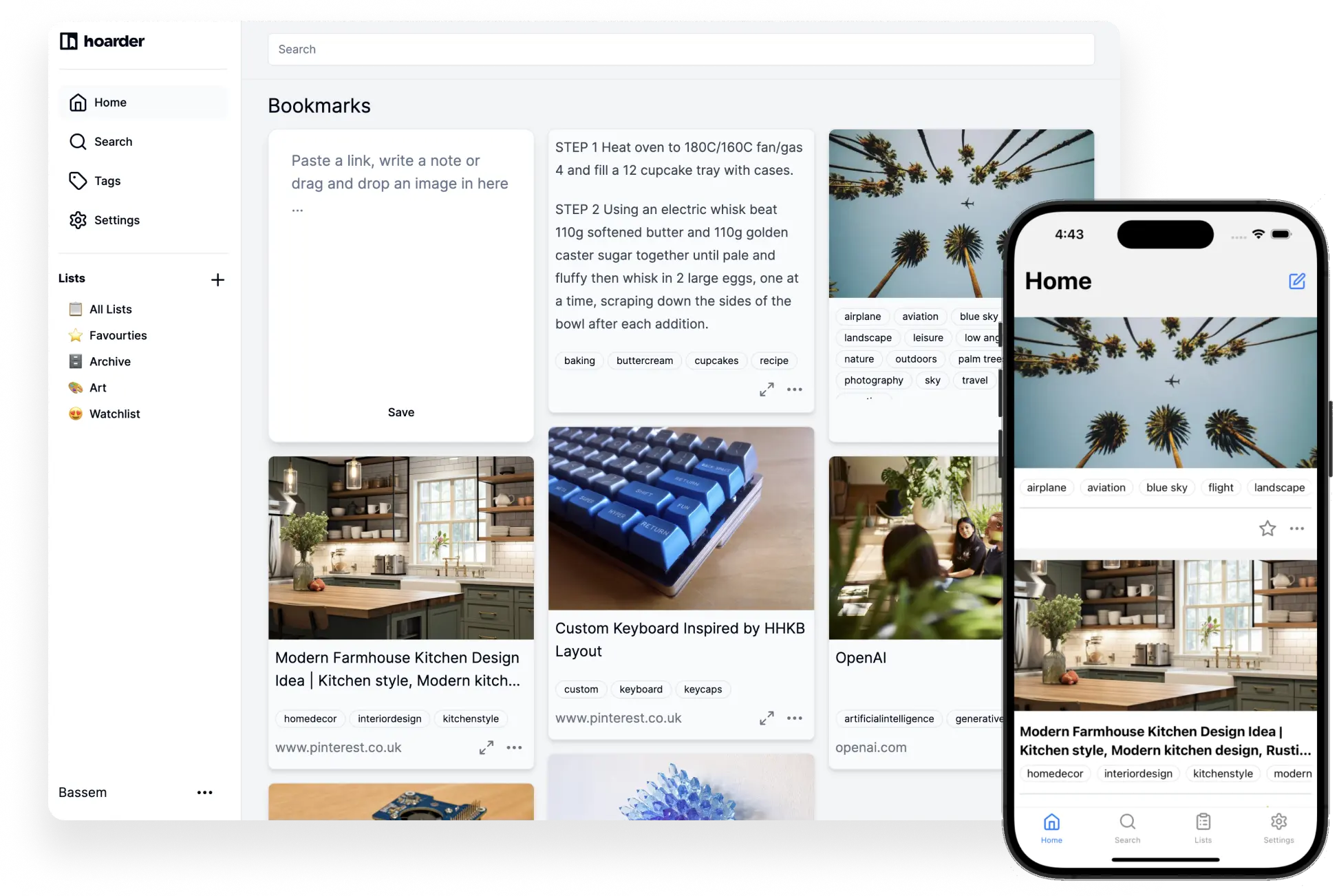
The Bookmark Everything App
Hoarder is an app that lets you quickly save and organize links, notes, and images. It will automatically tag them using AI, making it easy to find them later. It's an open-source alternative to services like Pocket and Raindrop. Similar open-source projects are Bookmark It and Brace.to.
Key features and benefits:
- Effortless Bookmarking: Save links, notes, and images with just a click.
- AI-Powered Tagging: Hoarder uses OpenAI to automatically tag your bookmarks.
- Informative Previews: Automatically fetches metadata like title, description, and an image so you can quickly identify everything.
- Organize with Ease: Create lists and tags to keep everything organized how you like.
- Search and Filter: Quickly find what you're looking for with powerful search and filter capabilities.
- Cross-Platform: Access your bookmarks from any device with a modern web browser with support for mobile apps and browser extensions.
- Self-Hosted: You own your data and can run it on your own server. It's also open-source!
I have been saving interesting articles and various tools I come across as well as birthday gift ideas for friends and family.
Installation & Configuration
Check out the official Hoarder documentation for detailed installation instructions. You can run Hoarder using Docker, Unraid, manually on your server or even on Kubernetes. I went with the recommended approach and followed the Docker Compose Installation steps to download the compose file, populate the initial environment variables and get it running.
Customization & Advanced Features
For more details on how to customize Hoarder, check out the Hoarder Configuration documentation.
OpenAI Integration for Automatic Tagging
Hoarder supports AI tagging using either OpenAI or Ollama. While both OpenAI and Ollama provide access to powerful language models, they differ significantly in their approach. OpenAI offers cloud-based access to its models (like GPT-3.5 and GPT-4) via API, making them readily available but with usage costs. Ollama, on the other hand, focuses on running open-source language models locally on your own hardware. This gives you more control and privacy, but requires technical expertise and sufficient computing resources.

I decided to quickly create an account with OpenAI at platform.openai.com, created a new hoarder project and API key using the gpt-4o-mini inference text model and topped up the account with some minimal credits. The quality of the tags you'll get will depend on the quality of the model you choose, but it seems to do well with just this minimal one. See the OpenAI Platform Quickstart guide for more details.
I then added the api key to the Hoarder environment variable OPENAI_API_KEY, which enabled the OpenAI integration. Now, whenever I save a bookmark, Hoarder automatically tags it with relevant keywords, making it easier to find later. For more information, see the Hoarder Inference Configs documentation.
OpenAI Costs
OpenAI charges per token used, with the cost varying depending on the model you choose. The gpt-4o-mini model is quite affordable. You can check the OpenAI Pricing page for more details. In my experience, it seems like I could get 20,000 bookmarks tagged for around $5, which is quite reasonable. I am also considering trying out Ollama in the future to compare the results and see what kind of performance it needs to run locally.
Meilisearch Integration for Search
Meilisearch is an open-source and fast search engine that provides instant search results. It's easy to set up and can be integrated with Hoarder to provide a seamless search experience. Hoarder's docker-compose.yml comes with an internal Meilisearch instance to support search functionality.
MEILI_MASTER_KEY=<Generate one with "openssl rand -base64 36">I did run into an issue where search wasn't initially working, but after following the suggestion from Issue #342, it then worked immediately.
NGINX Reverse Proxy Configuration
In order to access Hoarder over HTTPS and have it served on a subdomain. I already had an NGINX reverse proxy set up for other services, so I added a new server block to the configuration files. Here's a simplified version of the configuration:
server {
    listen 443 ssl;
    # listen [::]:443 ssl;

    server_name hoarder.*;
    include /config/nginx/ssl.conf;
    client_max_body_size 0;

    location / {
        include /config/nginx/proxy.conf;
        include /config/nginx/resolver.conf;
        set $upstream_app <ip_or_container_name>;
        set $upstream_port 3000;
        set $upstream_proto http;
        proxy_pass $upstream_proto://$upstream_app:$upstream_port;
    }

    location ~ (/hoarder)?/api {
        include /config/nginx/proxy.conf;
        include /config/nginx/resolver.conf;
        set $upstream_app <ip_or_container_name>;
        set $upstream_port 3000;
        set $upstream_proto http;
        proxy_pass $upstream_proto://$upstream_app:$upstream_port;
    }
}
Authelia Integration for OIDC Authentication
I wanted to integrate SSO authentication to Hoarder since I've been using Authelia for other services. Authelia is an open-source authentication and authorization server that provides Single Sign-On (SSO) and two-factor authentication (2FA) for your applications. It supports OpenID Connect (OIDC), SAML, and LDAP, and can be easily integrated with services like Hoarder.
Previously, I've followed the Authelia Identity Providers - OpenID Connect documentation to set up my internal Identity Provider (IdP). What's needed next is to configure a new Client Application in Authelia for Hoarder. For more context, see my Hoarder Discussion Authelia OIDC Client Config - Hoarder OAUTH SSO as you'll find others who have shared their configs as well for Google, Authentik, etc.
For my integration with Authelia, an example client config I found to work is the following:
- client_id: "hoarder"
  client_name: "Hoarder"
  client_secret: "<generated_plaintext_client_secret>"
  token_endpoint_auth_method: client_secret_basic
  authorization_policy: two_factor # optional
  redirect_uris:
    - "https://<hoarder_address>/api/auth/callback/custom"
  audience: # optional
    - "https://<hoarder_address>"
  grant_types: # optional
    - authorization_code
  scopes:
    - openid
    - profile
    - email
NOTE
Based on various failed attempts, it seemed that token_endpoint_auth_method: client_secret_basic was necessary, with the client_secret configured with a plaintext value. For more information, see How Do I Generate a Client Identifier or Client Secret.
I added the following environment variables to my Hoarder configuration:
# .env
OAUTH_WELLKNOWN_URL=https://<authelia_address>/.well-known/openid-configuration
OAUTH_CLIENT_SECRET=<plaintext_client_secret_from_authelia>
OAUTH_CLIENT_ID=hoarder
OAUTH_PROVIDER_NAME=authelia
NEXTAUTH_URL=https://<hoarder_address>
DISABLE_SIGNUPS=true # optional - avoid new users signing up as local Hoarder users
NOTE
For more information, see the Hoarder Authentication / Signup documentation.
Now, when I access Hoarder, I can select Login with Authelia and I'm redirected to the Authelia login page and then access Hoarder! Other users can also log in using their Authelia credentials. And everything is protected by Authelia's 2FA, which is a nice added layer of security.

Conclusion
Hoarder is a powerful self-hosted bookmarking app that can help you organize your online discoveries. By integrating OpenAI, Meilisearch, and Authelia, you can supercharge your bookmarking experience with AI tagging, lightning-fast search, and secure OIDC authentication. Give it a try to tame the chaos of the internet!