Managing dotfiles on GitHub ensures a consistent development environment across machines and simplifies setup and sharing. Here's how I organize my dotfiles on GitHub using Git submodules for public and private configurations.
What Are Dotfiles?
We all have our favorite tools, configurations, aliases that make our development environment comfortable and efficient. These configurations are typically stored in dotfiles. They are typically hidden files in the user's home directory and start with a dot (e.g., .bashrc, zshrc, .vimrc, .gitconfig), but they can also be directories (e.g., .vim, .config), or even common aliases (e.g., bash_aliases). Point is, they can be anything and everything that you use to customize your shell, editor, or other tools that are essential to your workflow.
For more info, check out Fireship's ~/.dotfiles in 100 Seconds and the unofficial guide to dotfiles on GitHub.

Why Organize Dotfiles in the Cloud?
Managing dotfiles on version control platforms like GitHub is real nice for at least a few reasons:
Consistency: By storing dotfiles in a central repository, you can maintain a consistent development environment across multiple machines. This is especially useful when switching between workstations or setting up a new computer.
Backup: GitHub provides a secure backup of your dotfiles, ensuring that you don't lose your configurations in case of hardware failure or accidental deletion.
Sharing: You can easily share your dotfiles with others by providing them with a link to your GitHub repository. This is particularly helpful for collaborating on projects or learning from others' configurations. Just look at all the exemplary dotfiles out there!
Easy Setup: With your dotfiles on GitHub, you can quickly set up your development environment on a new machine by cloning the repository and symlinking the dotfiles to your home directory. This is particularly useful for setting up cloud workspaces or Codespaces.
My Dotfiles Strategy
Here's how I organize my .dotfiles, it's probably not that unique, but it works for me:
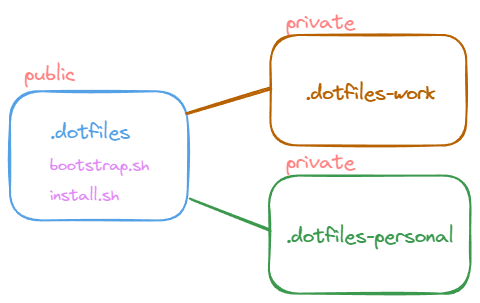
Public Repository: I store my public dotfiles in a repository named .dotfiles. Mostly I have tons of aliases and functions that I've accumulated over the years. It's helpful to have them in a public place to share easily with others.
Private Dotfiles Repositories as Git Submodules: I have additional repositories for specific profile contexts like
.dotfiles-workand.dotfiles-personalfor configurations that I want to keep private. I load these private repositories as Git submodules in my public.dotfilesrepository. This way, I can keep my private configurations separate from the public ones while still having them all in one place.Symlinks: Instead of copying the dotfiles to my home directory, I create symlinks to the files in the
.dotfilesrepository. This allows me to keep the files in a centralized location while still using them in my development environment.Structure: I organize my dotfiles into the following directories:
config directory contains configurations for specific tools like
git,vim,zsh, etc. They are kept in sync with the actual files in my home directory using symlinks managed by the stow tool.bash directory containing all sorts of tool-specific aliases and functions, all with an
_aliasessuffix. For example:
shellasdf_aliases context_aliases file_aliases gruntwork_aliases kubectl_aliases prompts_aliases aws_aliases env_aliases gh_aliases iac_aliases log_aliases terraform_aliases bw_aliases extract_aliases git_aliases k9s_aliases notify_aliases terragrunt_aliasesBootstrap Script: I have a bootstrap.sh script that will load all the aliases and functions in the
bashdirectories from all my dotfiles repositories. If the submodule repositories have abashdirectory, it will load those as well. This script is sourced in my.bashrcor.zshrcfile.Install Script: I have an install.sh script that simply appends the necessary lines to my
.bashrcor.zshrcto load thebootstrap.shscript.
Using GNU Stow for Managing Symlinks
GNU Stow is a symlink farm manager that can help you manage your dotfiles easily. It allows you to keep your dotfiles organized in a central repository and create symlinks to them in your home directory. This simplifies the process of setting up your development environment on new machines and ensures that your configurations are consistent across different environments. There are many great tutorials of using Stow for managing dotfiles. As just an example, see tdharris/.dotfiles/config. For more info, checkout Omer's ~/.dotfiles 101: A Zero to Configuration Hero Blueprint:
 .
.
Starting Your Dotfiles Journey
Create a Dotfiles Repository: Create a repository to store your dotfiles. You can name it
.dotfilesor something similar.- Add your dotfiles to the repository. You can organize them however you like, by tool or function (e.g.,
config/bash,config/vim,config/git), etc. - Create Symlinks using Stow: Instead of copying the dotfiles to your home directory, create symlinks to the files in your dotfiles repository. You can use the stow tool to manage symlinks for you.
- Add your dotfiles to the repository. You can organize them however you like, by tool or function (e.g.,
Create Submodules for any Private Repositories: If you have private configurations, create separate repositories for them like above and then add them as submodules to your main dotfiles repository. You can do this by running the following command:
shellgit submodule add <repository-url> <submodule-path>For example:
shellgit submodule add https://github.com/<username>/.dotfiles-work.git workHow to update submodules: When making changes to your submodules, you'll need to commit and push the changes in the submodule repository and then commit the changes in the main repository to update the submodule reference.
shellcd work git add . git commit -m "Update work submodule" git push cd .. git add work git commit -m "Update work submodule reference" git pushAlternatively, if you want to update all submodules at once, you can use the following command:
shellgit submodule update --recursive --remoteThen commit and push the changes in the main dotfiles repository.
Conclusion
Organizing your dotfiles on GitHub is a great way to maintain a consistent development environment, back up your configurations, share your settings with others, and simplify setup on new machines. By following a few simple strategies, you can keep your dotfiles organized and accessible across multiple machines. If you're interested in seeing how I organize my dotfiles, check out my .dotfiles.